Cross-platform rule-based proxy client · Official manual

Shadowrocket
Setup Guide

Cross-platform client for rule-based connection routing. iPhone / iPad: $2.99 once; Mac, Windows, Android and Linux versions are free.

Current version Loading · iPhone / iPad: $2.99 once; Mac, Windows, Android and Linux versions are free

First-time setup: import and connect ›
Global RoutingOn DemandVLESS
2 ways to get Shadowrocket Get it fromApp Store / site download page Before connectingYour own subscription or server details Rules entryConfig

Shadowrocket settings and rule routing

First distinguish servers, configuration files and connection modes, then adjust individual options. The examples below explain syntax and are not ready-to-use server configurations.

Browse by feature

Config and rule matching order

Rule routing determines whether a connection is proxied, connected directly or rejected. In Home, open Global Routing, choose Config for everyday rule-based routing, and confirm that the intended configuration file is selected in Config. Rules are usually checked from top to bottom; once a rule matches, its policy applies. Put more specific domain rules before broader ones. FINAL handles connections not matched by earlier rules. Proxy and Direct apply an overall handling mode and cannot verify whether a specific rule is working. Save the original configuration before making changes, then test with a clearly defined destination.

Learn more ›
DOMAIN-SUFFIX,example.com,PROXY
GEOIP,CN,DIRECT
FINAL,PROXY
Global Routing Config

Choose how to get Shadowrocket for your device

The iPhone / iPad app is a one-time $2.99 App Store purchase; Mac, Windows, Android and Linux versions are free. Desktop and Android installation files are available from this site's download page and served from its /dl/ path.

iPhone / iPad

One-time App Store purchase of $2.99, shared by both devices; other platforms are free. Check the store region and product information. See the App Store page for system requirements. When changing devices, use the original purchase account to find the app in your purchase history rather than searching again for a similar name.

Mac

Free, with installation files for Apple Silicon and Intel. Check the chip type in About This Mac before choosing; do not judge by the computer's appearance. If a system prompt appears on first launch, confirm that the file came from this site, then follow the download page's Privacy & Security instructions.

Windows

Free, with a 64-bit installer. Save the installation file and run it. If SmartScreen blocks the app, verify that it came from this site, then select More info and Run anyway. The full steps are on the download page. After installation, import your own server details.

Android

Free, with an arm64 installation package. Open the download page in a browser and, when prompted, allow the browser you're using to install unknown apps. If the file will not download when opened in WeChat, open the same page in the system browser instead. You can revoke the installation permission after setup.

Linux

Free, with deb, rpm and AppImage packages. Choose the format used by your distribution's package manager. AppImage files need execute permission. Reinstalling the same app in different formats is not a troubleshooting method. Check the system architecture, file format and execute permission, then refer to the commands on the download page.

See all platforms →

First connection: import details, then choose a mode

The steps below use the iPhone / iPad interface labels. Before starting, prepare your own subscription link or server parameters. The client does not include usable server connections.

  1. Step 01

    Add Server: import details

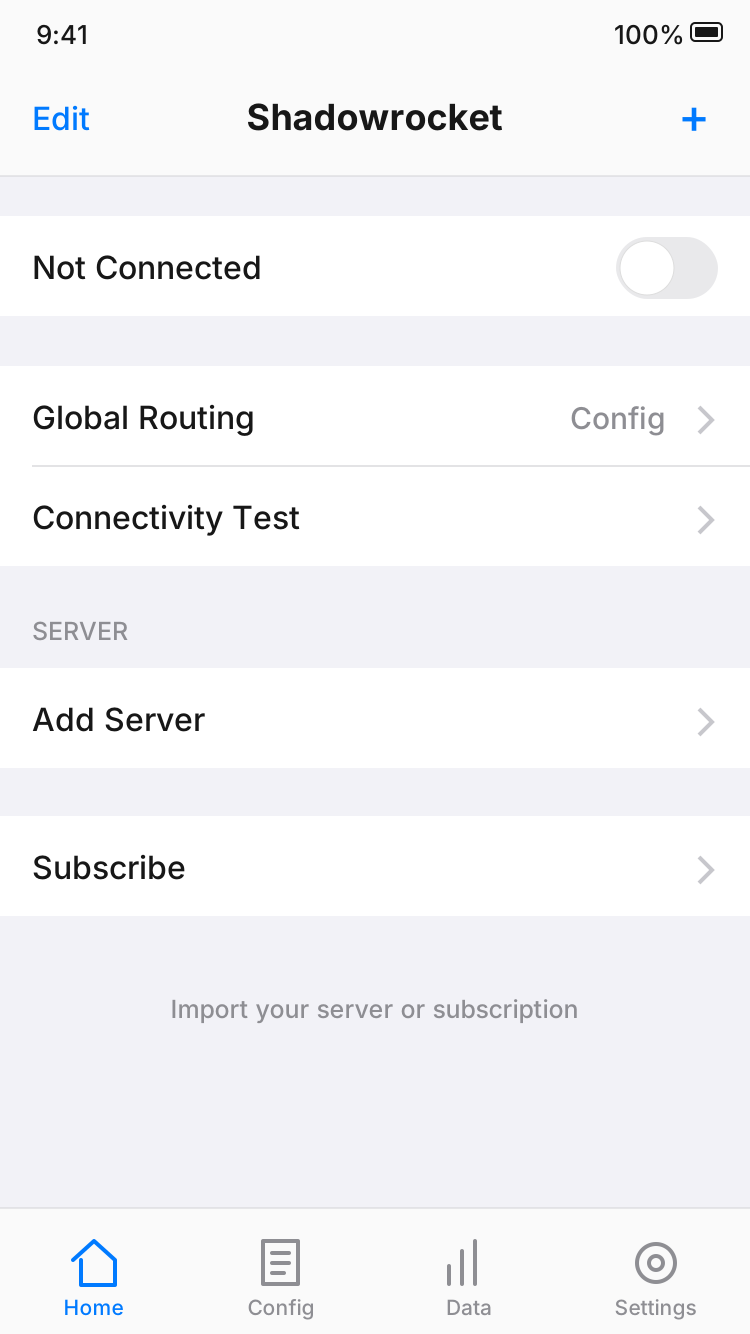
    In Home, open Add Server. For an existing subscription, choose Subscribe and paste the complete link. For a single existing server, select its Type and enter the fields as provided. After saving, check that an item appears in the SERVER list, then select the server you want to use. For QR-code imports, check the result too; a successful scan alone does not confirm that all parameters are present.

  2. Step 02

    Global Routing: choose a mode

    Config mode handles traffic according to the selected configuration file; Proxy mode sends traffic through the proxy; Direct mode connects directly. For everyday rule-based routing, choose Config and confirm that a file is selected in Config. Switching modes only changes how traffic is handled; it does not fix an incorrect password or port, or an expired subscription.

  3. Step 03

    Home: connect and verify

    Turn on the connection switch at the top of Home. The first time, follow the system prompt to allow adding a VPN configuration. Once the connection status changes, cross-check with Connectivity Test and by opening a real page. If it fails, check the device network, selected server, authentication fields and rules in that order. Change one item at a time and note its previous state so you can restore or compare it.

An enabled connection switch only indicates that the client has entered the corresponding connection state; it does not prove that every destination is reachable. Check separately whether the server connects, the domain resolves and the rules route traffic as expected. Avoid repeatedly deleting the entire configuration.

Read the full guide →

App verification, purchase and restore

Shadowrocket is closed-source commercial software. Check the source and product identity first, then manage device access and connection settings. Shadowrocket Hub provides the official site and manual.

Check three details on the App Store page

Before getting the iPhone / iPad app, verify the developer name Shadow Launch Technology Limited, the official app icon and app ID 932747118. A matching name alone does not prove that it is the same product; check the developer and the app ID in the product URL together. Use the original icon shown on this page for comparison, rather than relying on promotional text in search results.

On the product page, also check device compatibility. See the App Store page for system requirements. The US App Store price for iPhone / iPad is a one-time $2.99; other storefronts display local currency. Mac, Windows, Android and Linux versions are free. If the price or developer details do not match, return to the download page and check the link again.

App verification steps ›

If you cannot find the app, check the storefront region

Shadowrocket is not available in the mainland China App Store. If it does not appear in search, check the account used for Media & Purchases and its storefront region before trying different search terms. System language, device location and storefront region are separate settings. Changing the phone's display language does not change the storefront for the purchase account.

To change a region, review the requirements under Country/Region in your Apple Account settings, and check your balance, existing subscriptions and payment method requirements in advance. This manual does not provide accounts. Before purchasing, confirm that the current account can open the product page and complete payment; avoid repeated attempts while the account status is unclear.

Read the App Store guide ›

Restore purchases after changing devices

On iPhone / iPad, sign in with the same purchase account and find Shadowrocket in the App Store purchase history to download it again. The purchase is shared by both devices. iPhone / iPad: $2.99 once; Mac, Windows, Android and Linux: free. If the store still shows a purchase button, first check whether the Media & Purchases account is the one originally used to pay, then check purchase history. Do not pay again straight away.

Restoring a purchase and restoring a configuration are separate tasks. After reinstalling, check the server list, Config files and iCloud sync status. The store's purchase history does not replace your own configuration backup. Check the App Store product page and current family settings to see whether Family Sharing is available.

Restore after changing devices ›

Separate client costs from connection resources

A one-time client purchase does not include a server plan. The iPhone / iPad app is a one-time $2.99 App Store purchase; Mac, Windows, Android and Linux versions are free. None of these options includes server resources. You need your own subscription or server details to connect. This site does not provide, sell or recommend nodes or subscriptions.

Opening the app, importing a subscription and connecting to a server are separate steps. A successful purchase does not provide a server connection, and a successful import does not mean the connection is still valid. Check subscription details and account status with your own service provider. This manual explains fields, import steps and troubleshooting order; it does not review service providers.

Access and connection FAQs ›

Keep troubleshooting details when updating

Manage iPhone / iPad app updates through the App Store. For Mac, Windows, Android and Linux, return to this site's download page for the latest installation files. Updating the app, an existing subscription and a Config file are three separate actions. If a problem occurs, note the selected server, Global Routing mode and configuration file before deciding which layer needs attention. If a desktop or Android system blocks the app on first launch, first confirm that it came from this site's download page, then follow the system instructions there. Do not apply these steps to files from unknown sources.
Technical notes: modes, protocols and import troubleshooting

After establishing your first connection, read the relevant guide for the issue at hand. Confirm the controls and criteria first; do not change several options at once and hope for a result.

Protocol guide

VMess vs VLESS in Shadowrocket

Understand the differences in fields for encryption, UUID, transport and TLS options. When adding a server, enter the details as provided; similar protocol names do not make their parameters interchangeable.

Read the guide ›

View all articles →